
LESSON INTRODUCTION
Write one teaching point and a short, spoken introduction. A talking-avatar workflow needs a portrait or character and a script; a general video generator makes a shot, not the entire lesson.
For educators
This field is for planning only: copy your idea before leaving. The link opens Vidione, a separate site; nothing you type here is sent there. Google sign-in is needed to open its editor; you can import, trim, caption and export one source clip without a paid plan. New video generation needs a paid plan and credits. Join separate clips or add exported titles in another editor.
Or start with an example
From a simple idea to a more engaging video.
For creators, teams and businesses
The outbound link opens Vidione, not Vidnoz. A paid plan and credits are needed to generate a short shot (about eight seconds). Without paying, signed-in users can import one video, trim or split it, add subtitles, image overlays and audio, and export it. The built-in render does not join separate videos or bake arbitrary preview titles into the file; use another editor for those steps.
These are planning examples, not customer testimonials or results made by this page. Use them to decide whether you need a speaking avatar, a short generated shot, or edits to one imported video. Use another editor to join separate videos.
Write one teaching point and a short, spoken introduction. A talking-avatar workflow needs a portrait or character and a script; a general video generator makes a shot, not the entire lesson.
For educators
Translate and review your script with a qualified speaker first. Then make new audio or captions and synchronize them manually; the linked editor does not translate a finished video in one click.
For multilingual teams
Outline the process and gather approved screenshots. In Vidione, trim and caption one imported recording; if the walkthrough needs separate shots joined in order, assemble them in another editor. Check names and steps before sharing.
For internal training
If you have rights to a voice sample and portrait, explore the editor’s avatar tools. A reusable avatar pairs images with a selected voice; saving a voice file is not proof of instant voice cloning.
For brand storytellers
Plan one clear benefit for each scene. Vidione can generate one supporting shot with a paid plan and credits or edit one imported product clip. To join both shots or put a standalone title card on screen, use another editor; check every claim before sharing.
For product teams
From a quick explanation to a warm customer welcome, find a format that fits what you need to say.


Give colleagues a consistent introduction to a new topic.
Create training video


Creation, step by step
A generated shot and a speaking character are separate choices in the linked editor.
Copy your brief from this page; the editor needs a separate submission and eligible credits.
Split and trim one source in Vidione; for a longer video assembled from different clips, join them elsewhere.
Check script, image rights, timing and audio; export only after the full edit works.
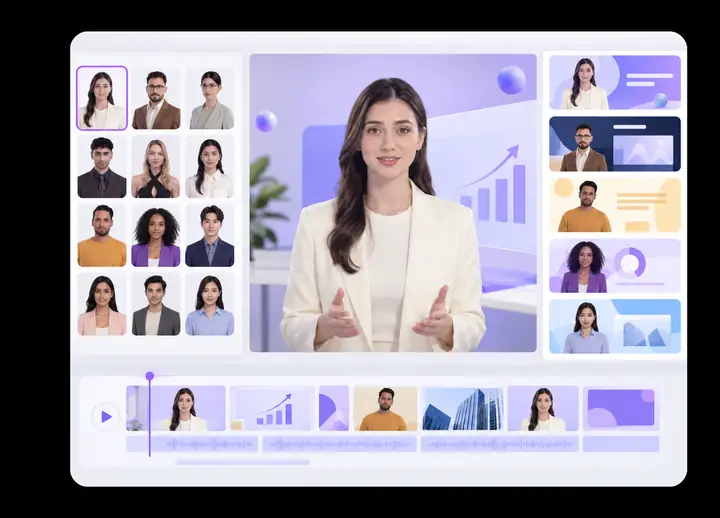
Picture the presenter, plan your message and take the next step when you are ready.
Step 1. Choose a look for your video


Step 2. Add your message

A more personal presentation
Try a speaking avatar, then review expression, lip movement and framing.
Consider a voice and delivery that fit the story you want to tell.
Make explanations feel more direct and approachable.
A style for every story
Choose a presentation style that feels right for your audience.
Make educational, professional or conversational messages your own.
Keep the focus on the words you want viewers to remember.
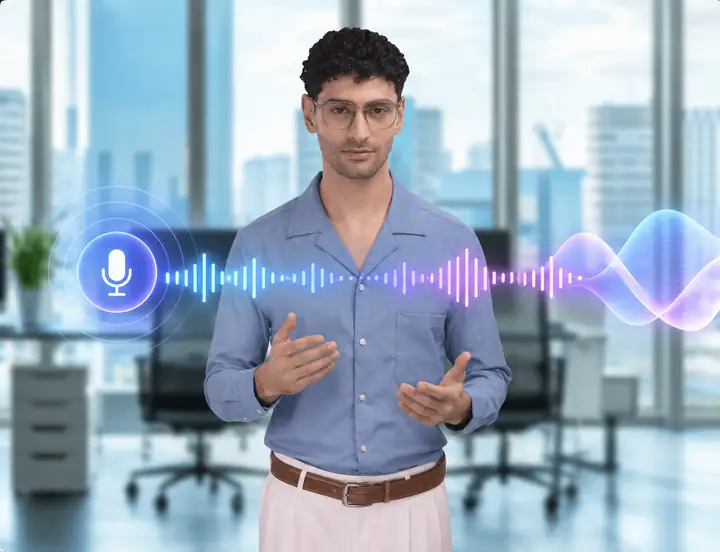
Make it sound like you
Think about the voice behind your message, not just the visuals.
Bring a more recognizable character to a video.
Keep your narration aligned with your creative direction.
Words worth hearing
Start with the script you already have in mind.
Find a voice that suits an explanation, welcome or story.
Bring spoken words and visual storytelling together.
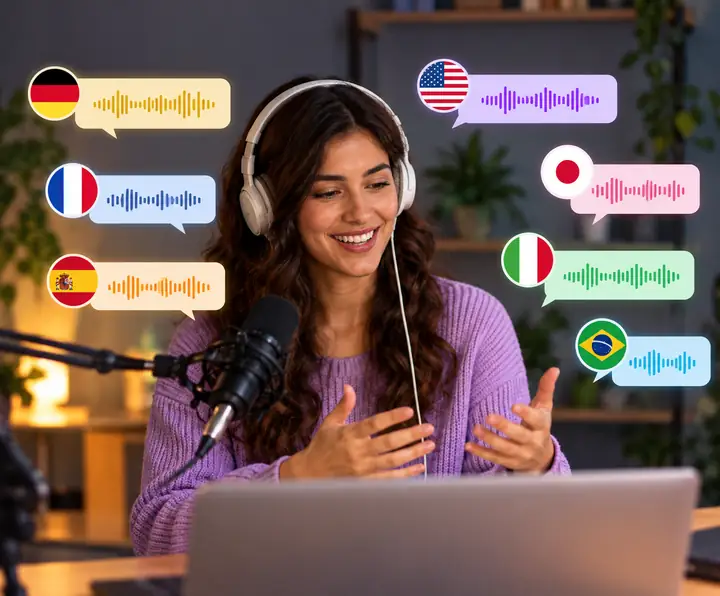
Reach beyond one language
Translate and review your script before recording a new voice track.
Align the new audio and captions with the video in an editor.
The linked video editor does not automatically translate a finished video.
When choosing tools for video creation, it is worth looking closely at how a service handles information, access and team needs.
Look for clear safeguards around the material used in your creative process.
Understand how a service describes its approach to your data.
Know where to turn when questions about your workflow come up.
Choose an approach that makes sense for the people you create with.
Consider the sign-in and account controls available on the creation platform.
Vidnoz is the subject of this comparison; its feature list is not a promise that Vidione, the separate tool linked by this site's action buttons, offers matching templates, voices or access terms.
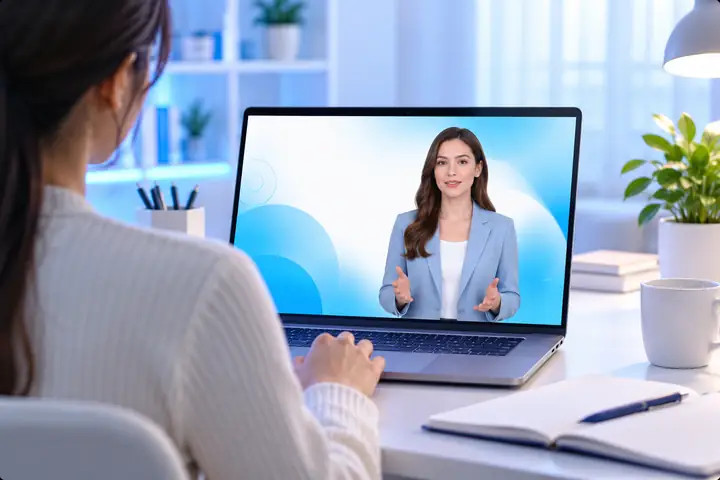
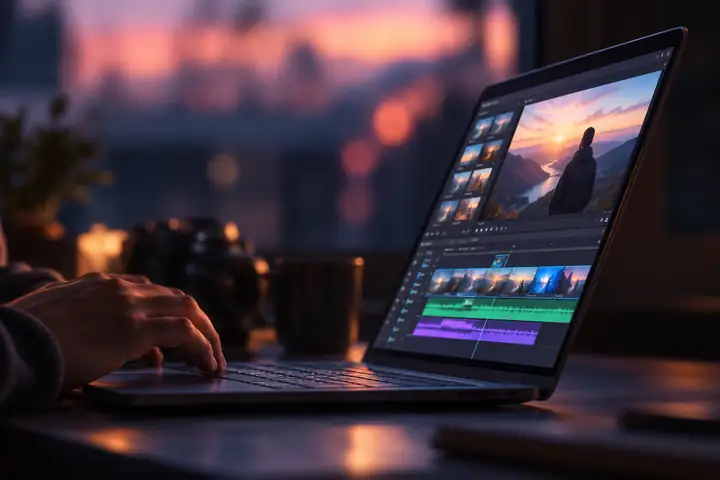
These images are illustrated video ideas, not templates verified in Vidione. Make a short shot or edit one imported clip there; combine different shots and add title cards with a separate editor.
Explore the editor
Sales and lead nurturing
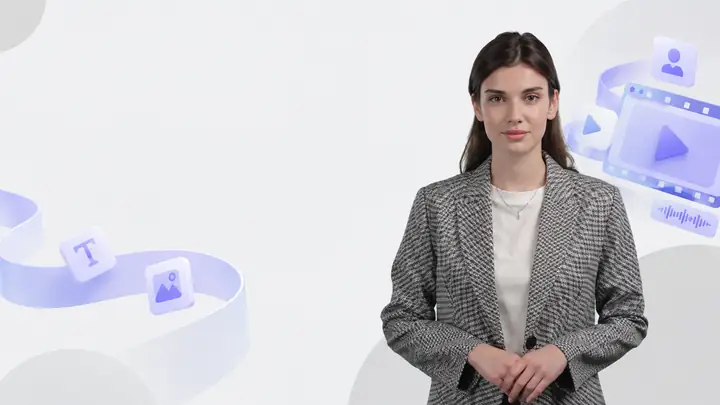
Investor pitch
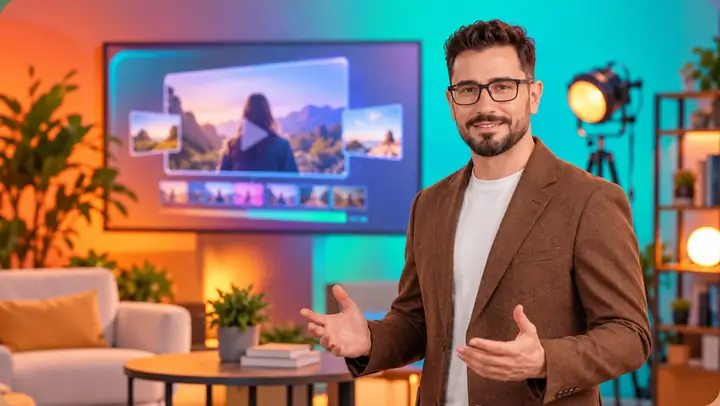
Modern talk show
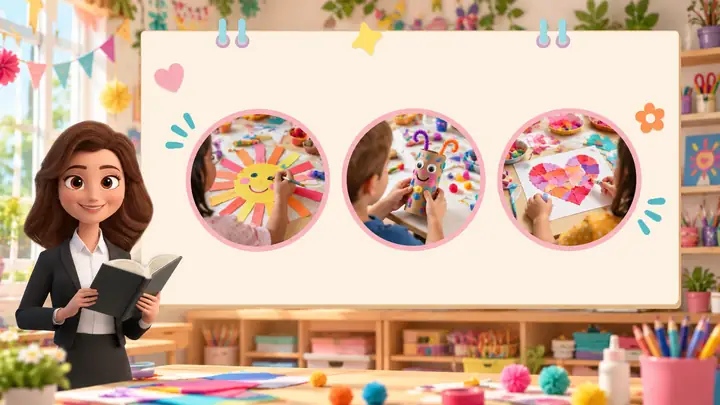
Arts and crafts class
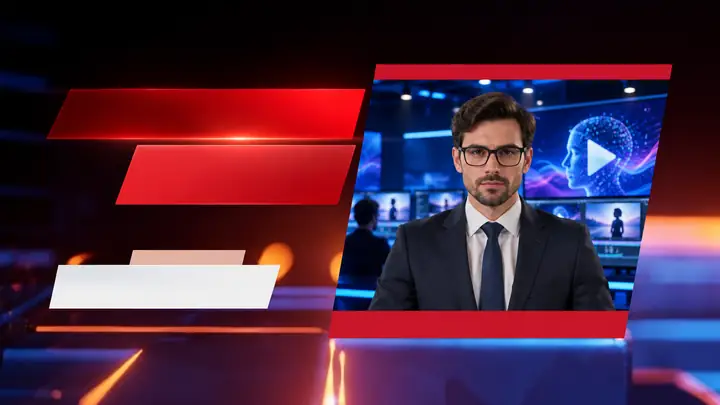
Breaking news

Risk assessment

Business ideas

Celebration invitation

Team onboarding
Simpler
Begin with a focused idea and a useful creative direction.
Closer
Put a presenter and a voice at the center of your story.
Flexible
Find formats for lessons, introductions and promotions.
Connected
Shape each video around the people who will watch it.
Describe one visible moment rather than asking a generated shot to explain an entire product. Check the result, then use a separate editor if you need to join it to footage or add an exported text title.

Product introduction
Example brief
For a speaking presenter, bring a script and a suitable portrait or avatar. Check the image rights and the voice choice, then review lips, wording and pacing in the finished clip.

Speaking avatar
Example brief
Write an approved step for each scene and pair it with relevant visual evidence. If the lesson uses separate recordings, join them in an external editor; Vidione's direct export trims and captions one source video.
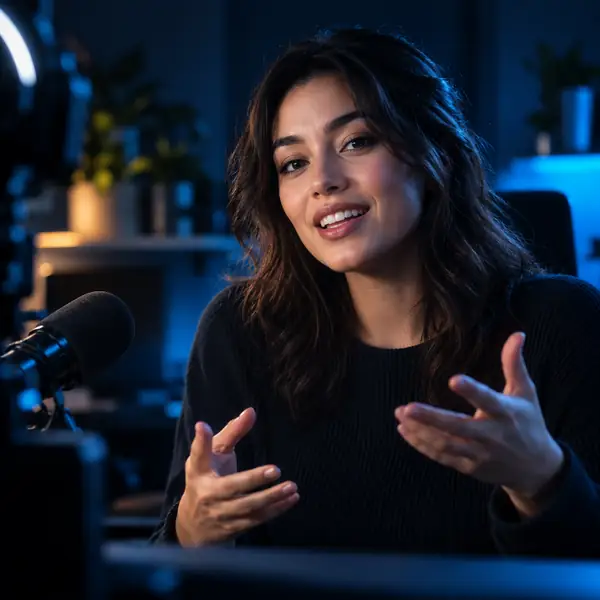
Staff training
Example brief
Translate the script outside the video generator, verify it with a speaker of the language, then record or generate replacement narration. Align the new audio with one source clip in Vidione, or use another editor for several separate shots.

Language version
Example brief
Start with an idea. Find the right way to present it. Make a video that helps your message reach the people who matter.
Start creating a video